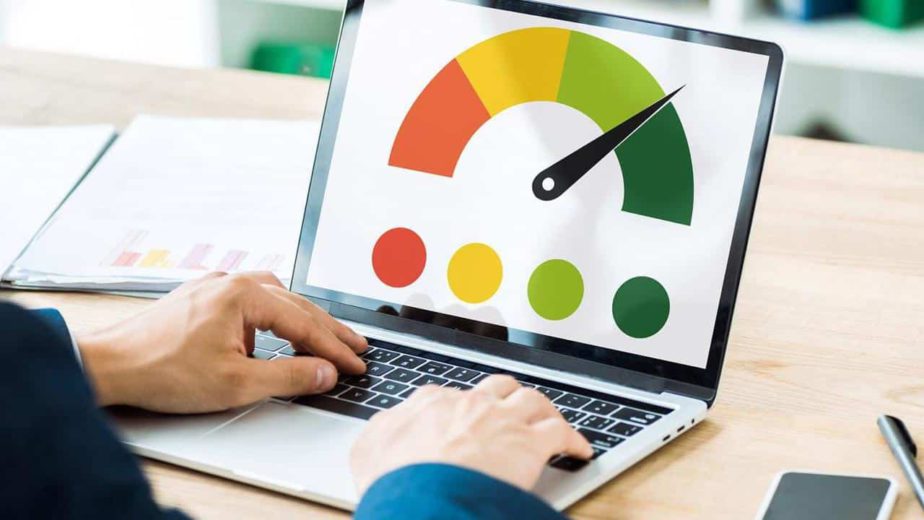
A laptop can often become faster without replacing memory, storage, or other components. Software clutter, startup applications, browser activity, limited free space, and overheating may be reducing performance.
Improving these areas can restore responsiveness at no hardware cost.
Restart regularly
Restarting clears temporary memory and closes stuck processes.
Do not leave the laptop in sleep mode for weeks.
A fresh restart can improve performance immediately.
Disable Startup Programs
Review Startup Apps or Login Items.
Disable unnecessary launchers, messaging platforms, meeting tools, and music services.
Clear laptop performance guidance can help users avoid disabling essential services.
Remove Unused Applications
Uninstall old games, trial software, duplicate utilities, and programs no longer needed.
Unused software may run background update services.
Restart after cleanup.
Free Storage Space
Keep at least 15 to 20 percent of the main drive available.
Delete temporary files, old downloads, duplicate media, and large obsolete files.
Organized file storage management helps maintain free space without losing important data.
Reduce Browser Tabs
Close pages that are not being used.
Remove unnecessary extensions.
Restart the browser occasionally.
Use one browser at a time.
Pause Cloud Syncing
Pause large uploads and downloads during demanding work.
Choose only essential folders for offline access.
Avoid running several duplicate cloud services.
Install Updates
Update the operating system and frequently used applications.
Use approved manufacturer drivers.
Restart after major updates.
Scan for Malware
Malware can create hidden processor and memory use.
Run a full scan with trusted security software.
Strong computer protection practices can prevent performance problems caused by unwanted software.
Use Balanced Power Settings
Battery-saving mode may reduce speed.
Maximum performance may increase heat.
Balanced mode works well for normal tasks.
Reduce Visual Effects
Disable unnecessary animations and transparency.
Older laptops may feel more responsive with simpler effects.
Close Background Apps
Fully exit communication tools, game launchers, and media services.
Minimized programs may still consume resources.
Manage AI Tools
Close AI assistants, image generators, and local models after use.
Many AI productivity applications use substantial memory and processor capacity.
Avoid running several together.
Clean External Vents
Dust and blocked airflow cause overheating.
Use the laptop on a hard surface.
Clean visible vents carefully with compressed air.
Organize the Desktop
Move files into folders.
Delete unused shortcuts and screenshots.
A cleaner desktop reduces visual clutter and syncing activity.
Adjust Search Indexing
File indexing can consume resources after large changes.
Allow it to finish.
Limit indexed locations only when necessary.
Remove Browser Cache
Clear cached files occasionally.
Keep passwords and important browsing data selected carefully.
Restart the browser afterward.
Use Lighter Applications
Choose simpler software for basic tasks.
A lightweight text editor may work better than a large office suite for quick notes.
Use web versions carefully because browser tabs can also consume memory.
Schedule Heavy Tasks
Run backups, updates, and scans while the laptop is idle.
Avoid performing them during meetings or demanding work.
Keep Fewer Files Open
Close documents, spreadsheets, and images after finishing.
Large projects may remain in memory even when minimized.
Reset the Operating System
When years of clutter remain, back up personal files and use the built-in reset option.
Reinstall only necessary applications.
Final Thoughts
Hardware upgrades are not always required. Restart regularly, reduce startup activity, free storage, remove unused software, close browser tabs, and manage syncing.
Control heat and demanding AI tools.
A cleaner software environment can make an older laptop feel significantly faster and extend its useful life.