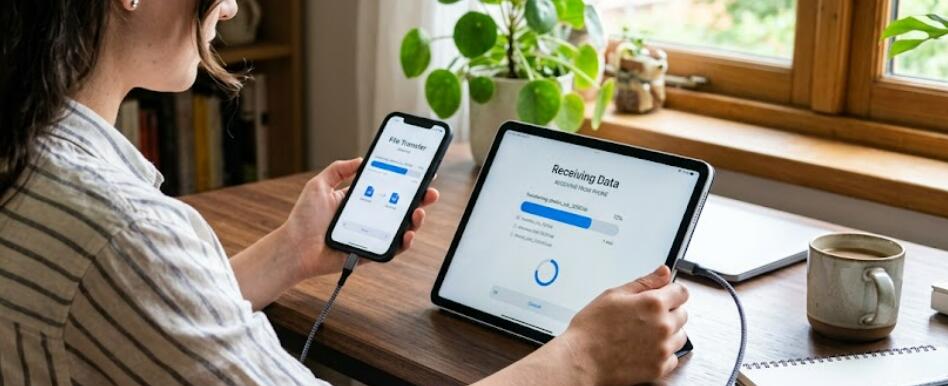
Moving to a new smartphone should not mean losing photographs, contacts, messages, documents, or account access. Modern transfer tools make the process easier, but mistakes can still create duplicate files, incomplete backups, missing authentication codes, or exposed private information.
The safest transfer begins before the new phone is turned on. Organize the old device, create a verified backup, and keep both phones until every important item has been checked.
Update Both Phones
Install stable software updates on the old and new devices.
Updated systems are more likely to support the same transfer methods and application versions.
Restart both phones after updating.
Charge them above 70% or keep them connected to reliable power during the transfer.
Create a Complete Backup
Back up the old phone before connecting the new one.
Include photographs, contacts, calendars, messages, documents, notes, and necessary application Data.
Use a trusted cloud service, computer, or external storage device.
Open several backup files from another device to confirm that the backup works.
Helpful smartphone transfer guides can explain how different systems handle contacts, media, messages, and app information.
Check Account Passwords
Make sure you know the passwords for email, cloud, social media, banking, messaging, and app-store accounts.
Do not rely completely on saved passwords stored only on the old device.
Update recovery email addresses and phone numbers.
Record backup codes for accounts using two-step verification.
Prepare Authentication Apps
Authenticator applications may require a special export or account-transfer process.
Do not erase the old phone until every code works on the new device.
Move accounts one at a time and test login access.
Store recovery codes somewhere secure and separate from both phones.
Use the Official Transfer Tool
Phone manufacturers and operating systems provide official migration tools.
These may transfer contacts, messages, photographs, applications, settings, call history, and other information.
Use the official method whenever possible rather than an unknown third-party transfer app.
Follow on-screen instructions carefully and keep the phones close together.
Use a Cable When Available
A direct cable connection is often faster and more stable than wireless transfer.
Use a reputable compatible cable and adapter.
Do not disconnect the phones while the transfer is active.
Place both devices on a flat surface so the connection is not disturbed.
Use a Secure Wi-Fi Network
Wireless transfers may require both phones to use the same Wi-Fi network.
Choose a trusted home or office network rather than public Wi-Fi.
Update the router password and use modern encryption.
Following secure transfer practices protects personal files while they move between devices.
Keep the Phones Charged
Large transfers can take time and use significant battery power.
Connect both phones to reliable chargers when the transfer tool permits it.
Prevent screens from locking when the transfer instructions require them to remain active.
Avoid gaming, streaming, and other demanding activities during the process.
Transfer Contacts Carefully
Synchronize contacts with a trusted account or export them as a contact file.
Check whether contacts are stored on the phone, SIM card, email account, or several locations.
Duplicate contacts may appear when multiple sources are synchronized.
Do not delete duplicates until you confirm which entries contain the most complete information.
Move Photographs and Videos
Use the official transfer tool, cloud photo service, or computer.
Compare the number of transferred items and open several older and newer files.
Check hidden albums, screenshots, edited photos, and application-specific folders.
High-resolution videos may require additional time.
Transfer Messages
Text and messaging history may require special migration tools.
Back up conversations before starting.
Some messaging applications use account-based cloud backup, while others require a direct phone-to-phone transfer.
Verify photographs, voice notes, and documents inside important conversations.
Move Documents and Downloads
Check Downloads, Documents, scanner apps, cloud drives, and secure folders.
Important files may not appear in the main photo or transfer categories.
Organize them into clearly labeled folders before moving them.
Open transferred documents to confirm that they are not corrupted.
Handle Banking Apps Separately
Banking applications often require new-device registration.
Do not assume they will remain signed in after transfer.
Keep the old SIM and phone available until new access is confirmed.
Use official support channels when additional verification is required.
Transfer Password Manager Access
Install the password manager from the official app store.
Sign in and verify that the vault synchronizes correctly.
Do not export unencrypted password files unless absolutely necessary.
Delete temporary export files immediately after a successful import.
Reconnect Wearables and Accessories
Smartwatches, earbuds, vehicles, fitness trackers, and medical accessories may need to be unpaired from the old phone first.
Back up wearable information where supported.
Follow the accessory manufacturer’s migration instructions.
Test each important device after pairing it with the new phone.
Review Application Data
Applications may reinstall without restoring local drafts, offline downloads, projects, or game progress.
Open important apps on the old phone and check whether their data is synchronized.
Export unfinished creative projects and business documents manually.
Practical mobile migration strategies can help users identify information that ordinary transfer tools may miss.
Protect the Old Phone
Keep the old phone locked and connected to your accounts until the transfer is verified.
Do not lend, sell, or trade it in immediately.
Remove sensitive notifications from the lock screen.
Store it in a secure place during the checking period.
Compare Both Devices
Check contacts, photos, videos, messages, notes, documents, calendars, browser bookmarks, passwords, and app access.
Place the phones side by side and review one category at a time.
Test calls, mobile data, Wi-Fi, camera, and account notifications.
Do not depend only on a “Transfer Complete” message.
Watch for Suspicious Transfer Apps
Unknown migration tools may request access to every file, contact, message, and account.
Use built-in or reputable official tools.
Avoid applications promising impossible transfer speeds or unrestricted access to protected data.
Reliable mobile security guidance can help users evaluate transfer software and permission requests.
Remove Accounts From the Old Phone
After verifying the new device, sign out of email, cloud, banking, social, and work accounts on the old phone.
Remove payment cards and device-tracking connections where required.
Do not begin this step until account access works on the new phone.
Keep a final backup.
Factory Reset Before Selling
A factory reset is essential before selling, trading, donating, or giving away the old phone.
Remove the SIM and memory card.
Disable activation locks according to the manufacturer’s instructions.
Complete the reset and confirm that the setup screen appears.
Never hand over a phone that still contains your accounts or personal files.
A safe smartphone transfer requires preparation, verification, and patience. Back up the old device, secure account access, use official tools, and check every important category before erasing anything. Keep the old phone until you are certain the new one contains everything necessary.